> ## Documentation Index
> Fetch the complete documentation index at: https://rive-update-scripting-docs-886.mintlify.site/llms.txt
> Use this file to discover all available pages before exploring further.
# Toolbar
> Access file, design, rigging, preview, and export tools from the Rive editor toolbar.
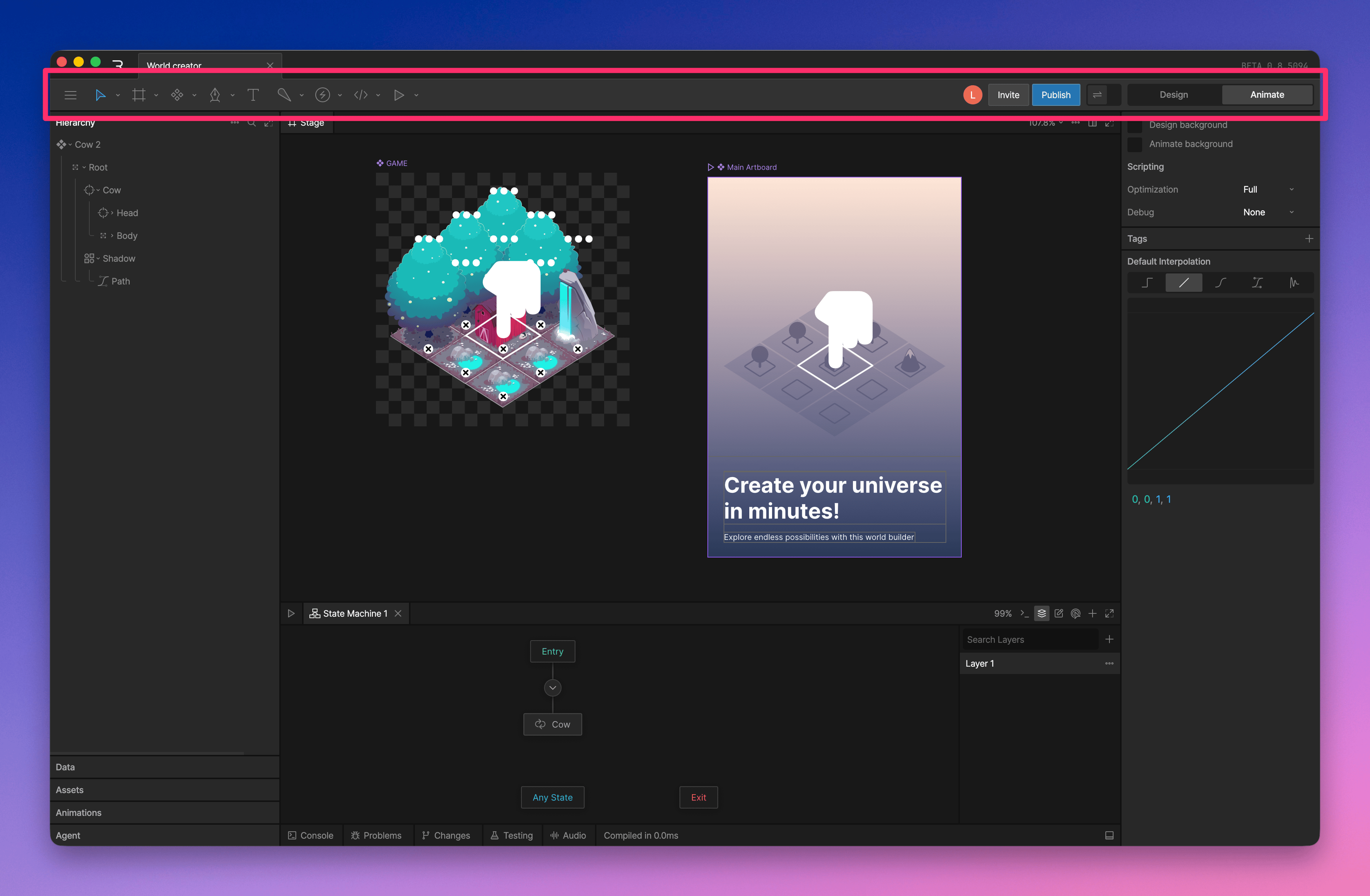 Use the toolbar to switch tools, create objects, adjust view options, invite collaborators, publish your file, and access file-level actions.
## Editor menu
Use the toolbar to switch tools, create objects, adjust view options, invite collaborators, publish your file, and access file-level actions.
## Editor menu
 The **Editor menu** contains file-level actions and editor settings.
Common actions include:
* [Revision History](/editor/fundamentals/revision-history)
* [Export for Runtime](/editor/exporting/exporting-for-runtime)
* [Export for Backup](/editor/exporting/exporting-for-backup)
* [Share and Embed](/editor/embed-urls/overview)
* [Render to Video or Image](/editor/exporting/exporting-for-video-and-static-design)
## Tools
The **Editor menu** contains file-level actions and editor settings.
Common actions include:
* [Revision History](/editor/fundamentals/revision-history)
* [Export for Runtime](/editor/exporting/exporting-for-runtime)
* [Export for Backup](/editor/exporting/exporting-for-backup)
* [Share and Embed](/editor/embed-urls/overview)
* [Render to Video or Image](/editor/exporting/exporting-for-video-and-static-design)
## Tools
 The **Tools** area lets you select, transform, draw, create objects, add rigging, and preview interactions.
Common tools include:
* Select, translate, rotate, and scale tools
* [Artboards](/editor/fundamentals/artboards) and [components](/editor/fundamentals/components)
* [Shape and drawing tools](/editor/fundamentals/shapes-and-paths-overview)
* [Bones tools](/editor/manipulating-shapes/manipulating-shapes)
* Play the [State Machine](/editor/state-machine/state-machine)
## Invite
The **Tools** area lets you select, transform, draw, create objects, add rigging, and preview interactions.
Common tools include:
* Select, translate, rotate, and scale tools
* [Artboards](/editor/fundamentals/artboards) and [components](/editor/fundamentals/components)
* [Shape and drawing tools](/editor/fundamentals/shapes-and-paths-overview)
* [Bones tools](/editor/manipulating-shapes/manipulating-shapes)
* Play the [State Machine](/editor/state-machine/state-machine)
## Invite
 Use **Invite** to add collaborators to the file.
## Publish
Use **Invite** to add collaborators to the file.
## Publish
 Use **Publish** to export, embed, or publish your file.
* [Export a .riv for runtime](/editor/exporting/exporting-for-runtime)
* Publish to a [library](/editor/libraries)
* [Embed](/editor/embed-urls/overview)
* Publish to the [marketplace](/community/marketplace-overview#marketplace-overview)
## Preview bound values
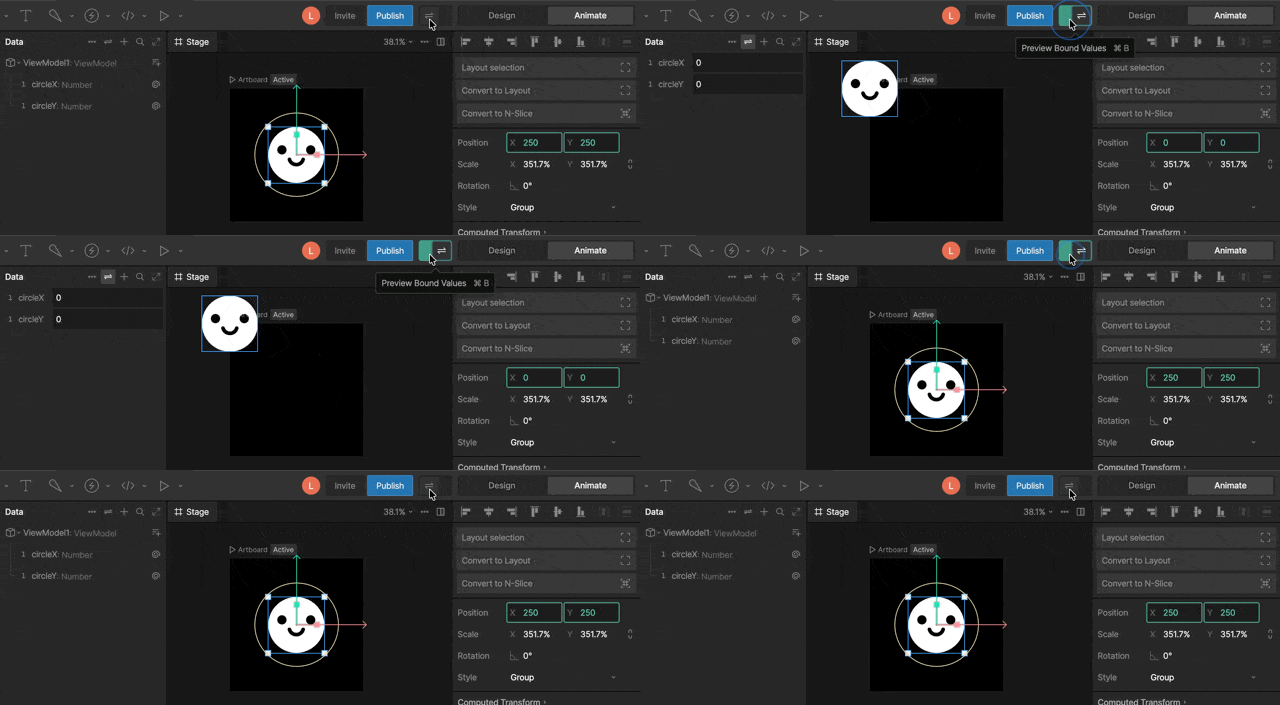
By default, data-bound values update while the state machine is playing.
Turn on the **Data Binding Preview Toggle** to preview bound values while editing.
Use **Publish** to export, embed, or publish your file.
* [Export a .riv for runtime](/editor/exporting/exporting-for-runtime)
* Publish to a [library](/editor/libraries)
* [Embed](/editor/embed-urls/overview)
* Publish to the [marketplace](/community/marketplace-overview#marketplace-overview)
## Preview bound values
By default, data-bound values update while the state machine is playing.
Turn on the **Data Binding Preview Toggle** to preview bound values while editing.
 ## Mode toggle
Use the **Mode Toggle** to switch between **Design** and **Animate** mode. Press `Tab` to switch modes quickly.
* **Design Mode**: create, edit, import, and rig graphics.
* **Animate Mode**: create timelines, state machines, keys, and animation logic.
Editing objects while a timeline is selected in Animate Mode can create keys. Learn more about [Design and Animate Modes](/editor/fundamentals/design-vs-animate-mode).
## Mode toggle
Use the **Mode Toggle** to switch between **Design** and **Animate** mode. Press `Tab` to switch modes quickly.
* **Design Mode**: create, edit, import, and rig graphics.
* **Animate Mode**: create timelines, state machines, keys, and animation logic.
Editing objects while a timeline is selected in Animate Mode can create keys. Learn more about [Design and Animate Modes](/editor/fundamentals/design-vs-animate-mode).
 \\
\\